
Google Pay™ enables shoppers to perform fast and secure checkout on a website or app using a credit or debit card saved to their Google Account or an Android device.
BT Pay has partnered with Google Pay™ as a Participating Processor offering Google Pay™ on the web to BT Group's merchants through standard integration options.
This guide focuses on how Google Pay™ can be integrated on the web by the merchants using BT Pay’s solution.
A merchant needs to activate Google Pay™ via the self-service portal of BT Pay. An authorised merchant user can see the merchant’s configurations including which payment methods are supported and have already been activated, after logging on to the portal. They can then activate Google Pay™ as an alternate payment method to cards, provided at least one card scheme is already enabled.
Once Google Pay™ has been successfully activated, it will be reflected in the merchant configurations to accept Google Pay™ with cards using the enabled card scheme(s).
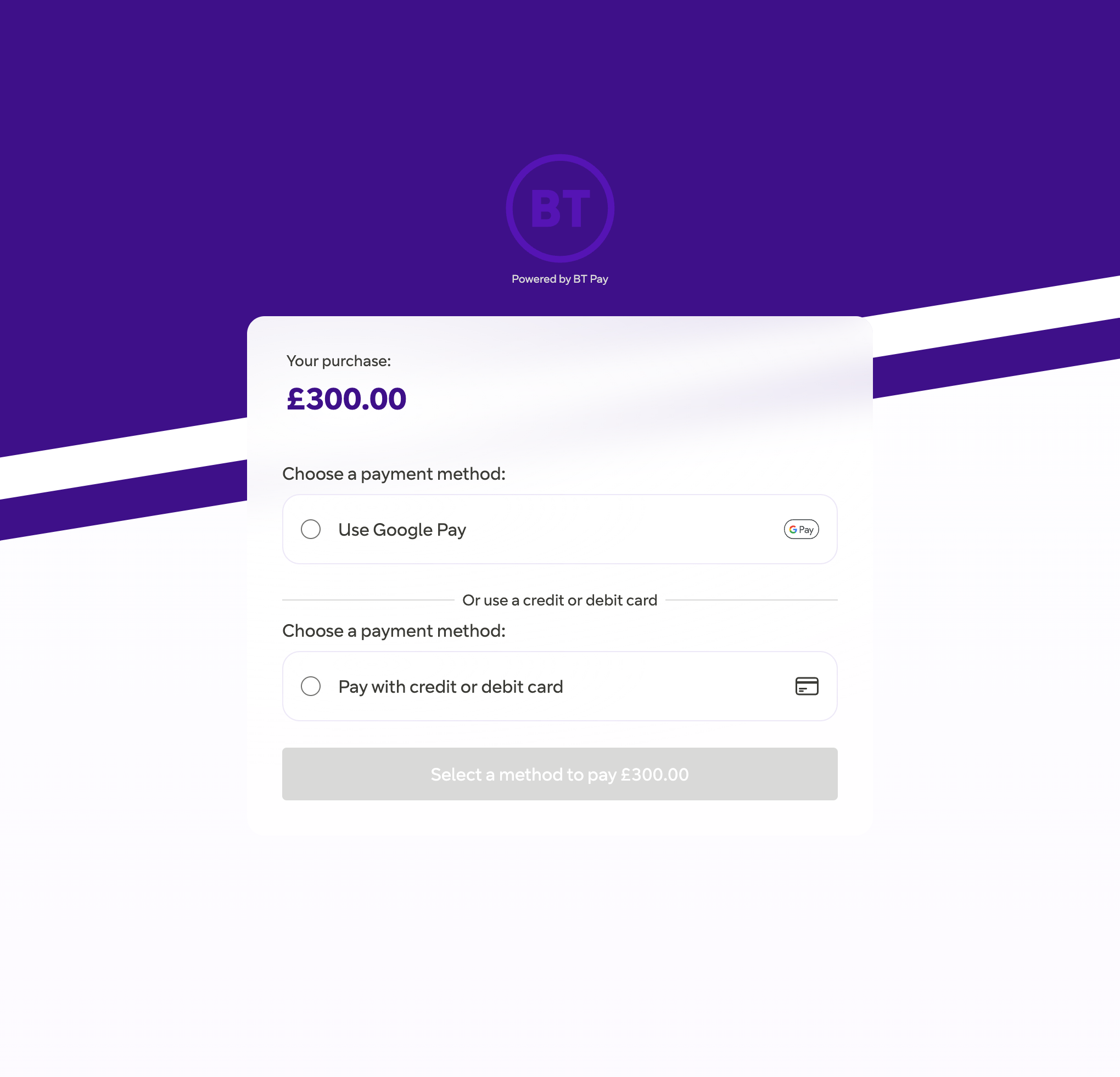
BT Pay shows a Hosted payment page on behalf of the merchants to offer Google Pay™ as an alternate payment method. BT Pay determines the user's ability to use Google Pay™ while loading the Hosted payment page. Google Pay™ appears only if the user's current device and browser supports the Google Pay™ API. The merchant application (website or mobile app) can either redirect to the Hosted payment page domain to show the payment page or embed the payment page within an iFrame created on the merchant’s domain on a web browser.
The Hosted payment page collects encrypted payment token from Google Pay™ when payments are being made and interacts with BT Pay’s gateway services to process the payments.
No added integration steps are therefore required by merchants to avail Google Pay™ functionality using Hosted checkout.
To learn more about how to use hosted checkout integration, see the guides for HPP (redirection) and iFrame integration guides:
When a shopper goes to checkout on the Merchant application (web or mobile), they are redirected to a pre-built Hosted Payment Page hosted on BT Pay. The shopper makes the payment on the Hosted Payment page using Google Pay™. BT Pay interacts with Google Pay™ to get the card details required to process the payment. Once the payment is complete, the shopper is redirected back to a page on the Merchant application. The Merchant application then shows the payment outcome to the shopper and confirms the order completion.
To build the integration, the Merchant application needs to make two different API requests to BT Pay:
For mobile apps, please note that Google Pay™ is not supported or recommended in WebView. If a merchant would like to enable Google Pay™ in a mobile app, we recommend using an in-app browser instead.
For apps that transport the user to an external browser, the hosted payment page will be displayed like normal with all the browser characteristics.

When a shopper goes to checkout on a Merchant application (web or mobile), an embedded payment form appears inline with the other contents on the same application window, using an iFrame injected by BT Pay rendering their own hosted payment page. The shopper makes the payment on the iFrame payment form using Google Pay. BT Pay interacts with Google Pay™ to get a payment token required to process the payment. Once the payment is successful, the Merchant application closes the iFrame by way of a success event message received from it, and subsequently shows the payment outcome to the shopper along with confirming the order.
To build the integration, the Merchant application needs to make an API request to BT Pay:
Merchants that embed BT Pay’s hosted payment page using <iframe> element should set the allow="payment *" attribute.
<iframe src="https://hpp.btpay.bt.com?id=..." allow="payment *"></iframe>
The merchants host their own payment page offering Google Pay™ for web checkout and collect payment credentials directly from Google Pay™ for every such payment. The merchants however use BT Pay gateway services to process the payments through to completion.
sequenceDiagram
    participant Shopper Device as Shopper Device
    participant Google as Google
    participant Merchant as Merchant
    participant BT Pay as BT Pay

    Merchant->>BT Pay: 1. Initiates a new payment (/api/payments/initiate)
    Merchant->>Shopper Device: 2. Redirect shopper to payment page
    Shopper Device->>Shopper Device: 3. Click on Google Pay Button
    Shopper Device->>Google: 4. Google Pay App/Popup Invoked
    Google->>Shopper Device: 5. Provides available payment methods / other details
    Shopper Device->>Google: 6. Confirms card / other details
    Google->>Shopper Device: 7. Encrypted payment payload and some unencrypted details
    Shopper Device->>Merchant: 8. Sends payment payload to Merchant
    Merchant->>BT Pay: 9. Confirms the payment (/api/payments/{id}/confirm)
    BT Pay->>BT Pay: 10. Decrypts and performs transaction
    BT Pay->>Merchant: 11. Sends transaction result
    Merchant->>Shopper Device: 12. Confirms transaction to user
For this method of integration, the merchants must ensure that they:
To support merchants who integrate with Google Pay™ and add the payment method to their checkout page, BT Pay has provisioned gateway capabilities serviced through API calls.
Google Pay Web Developer Documentation specifies that you need to build a PaymentDataRequest object to describe your site's support for the Google Pay™ API. BT Pay provides the necessary data to help you fill the object and generate a payment token.
Google encrypts information about a shopper's selected card for secure processing by BT Pay when the following parameters are specified:
gateway parameter must be set to btpay to use the gateway services of BT Pay.gatewayMerchantID must be the unique merchant business ID issued by BT Pay as part of merchant onboarding to use BT Pay services.const tokenizationSpecification = {
type: 'PAYMENT_GATEWAY',
parameters: {
'gateway': 'btpay',
'gatewayMerchantId': '' // merchant business ID issued by BT Pay
}
};
The following card networks are supported: VISA, MASTERCARD, and AMEX.
Merchants can choose to enable/disable any of the above schemes in their configurations with BT Pay. The allowedCardNetworks must be set based on merchant enabled schemes in BT Pay Merchant Portal.
For example, if the merchant has only enabled the MASTERCARD scheme, then the allowedCardNetworks should use just MASTERCARD. If the merchant enables all the above schemes, then allowedCardNetworks should be: MASTERCARD, VISA, AMEX.
const allowedCardNetworks = ["AMEX", "MASTERCARD", "VISA"];
BT Pay supports processing card transactions authenticated using the PAN_ONLY and CRYPTOGRAM_3DS methods by Google Pay™.
The payment credentials received through PAN_ONLY authentication undergo step-up 3DS authentication before authorisation with the acquirer to ensure liability shift from the merchant to the issuer.
The allowedAuthMethods should be set with: PAN_ONLY, CRYPTOGRAM_3DS to enable processing support for both authentication methods.
const allowedCardAuthMethods = ["PAN_ONLY", "CRYPTOGRAM_3DS"];
Before displaying the Google Pay™ payment button, your site should confirm the user's ability to pay through the isReadyToPay() function. This checks if the user's device and browser support Google Pay™.
Example IsReadyToPay() Request:
const paymentsClient = new google.payments.api.PaymentsClient({});

// Define the allowed networks and authentication methods
const request = Object.assign({}, baseRequest, {
  allowedPaymentMethods: [{
    type: 'CARD',
    tokenizationSpecification: {
      type: 'PAYMENT_GATEWAY',
      parameters: {
        'gateway': 'btpay',
        'gatewayMerchantId': '' // merchant business ID issued by BT Pay
      }
    },
    parameters: {
      allowedAuthMethods: ["PAN_ONLY", "CRYPTOGRAM_3DS"],
      allowedCardNetworks: ["AMEX", "MASTERCARD", "VISA"]
    }
  }]
});

// Check if the user is ready to pay
paymentsClient.isReadyToPay(request)
  .then(function(response) {
    if (response.result) {
      // Show Google Pay payment button
    } else {
      // Show alternative payment options
    }
  })
  .catch(function(err) {
    console.error("Error determining readiness to pay:", err);
  });
As described on Google Pay Deploy Production Environment document, you need to update the MerchantInfo object to set the correct merchantId
assigned to you by Google Pay™ and available on Google Pay & Wallet Console
paymentDataRequest.merchantInfo = {
  merchantName: 'Example Merchant',
  merchantId: '' // from Google Pay & Wallet Console
};
The final PaymentDataRequest object should look similar to the one below:
{
  "apiVersion": 2,
  "apiVersionMinor": 0,
  "allowedPaymentMethods": [
    {
      "type": "CARD",
      "parameters": {
        "allowedAuthMethods": ["PAN_ONLY", "CRYPTOGRAM_3DS"],
        "allowedCardNetworks": ["AMEX", "MASTERCARD", "VISA"]
      },
      "tokenizationSpecification": {
        "type": "PAYMENT_GATEWAY",
        "parameters": {
          "gateway": "btpay",
          "gatewayMerchantId": "" // from BT Pay
        }
      }
    }
  ],
  "transactionInfo": {
    "displayItems": [
      {
        "label": "Subtotal",
        "type": "SUBTOTAL",
        "price": "12.00"
      }
    ],
    "countryCode": "GB",
    "currencyCode": "GBP",
    "totalPriceStatus": "FINAL",
    "totalPrice": "12.00",
    "totalPriceLabel": "Total"
  },
  "merchantInfo": {
    "merchantName": "Example Merchant",
    "merchantId": "" // From Google Pay
  }
}
The event handler calls loadPaymentData(paymentDataRequest) immediately after it interacts with the Google Pay™ payment button. At this point, encode the returned data from Google Pay™ in Base 64 format and send it to BT Pay to process the payment.
paymentsClient.loadPaymentData(paymentDataRequest).then(function(paymentData){
  const encoder = new TextEncoder();
  const data = encoder.encode(JSON.stringify(paymentData));

  // Pass this encoded token to your BFF (Backend for Frontend) so it can send to BT Pay
  const encodedPaymentToken = btoa(String.fromCharCode(...new Uint8Array(data.buffer)));

  // Call BFF with the payment token
  handlePaymentToken(encodedPaymentToken);
}).catch(function(err){
  // show error in developer console for debugging
  console.error(err);
});
Sample BFF code performing payment confirmation:
//...
// Confirm payment via BT Pay API using Google Pay Token
function handlePaymentToken(encodedPaymentToken) {
  const url = 'https://api.btpay.bt.com/api/payments/[PAYMENT_ID_HERE]/confirm';

  const body = {
    paymentMethodType: "TOKEN",
    token: {
      type: "GOOGLE_PAY",
      value: encodedPaymentToken
    }
  };

  axios({
    method: 'post',
    url: url,
    headers: {
      'Content-Type': 'application/json',
      'User-Agent': '[USER-AGENT]', // in case it's not automatically set by the http client you are using
      'x-api-key': '[YOUR_SECRET_API_KEY]', // generated via BT Pay Merchant Portal
      'x-api-version': 'V1'
    },
    data: body
  })
  .then(response => {
    // payment processed successfully
    console.log(response.data);
  })
  .catch(error => {
    // payment processing failed
    console.error('Error:', error);
  });
}
// ...